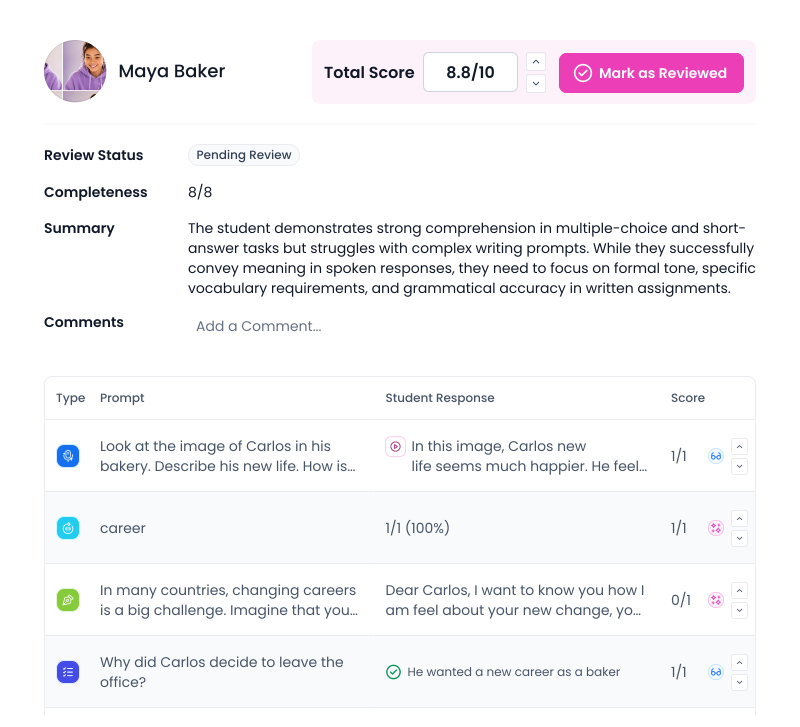
In Assessment mode, AI grading and feedback are generated on submission and held for your review. Review, adjust, and release results when you're ready.
Set a Time Limit
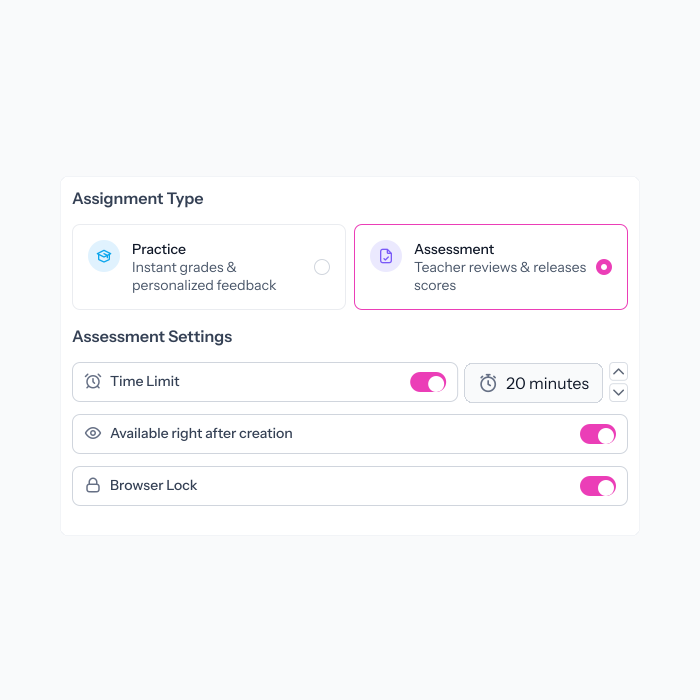
Set a time limit so every student works in the same window. The timer starts when they begin and auto-submits when time runs out.
Lock the Browser
Browser Lock keeps students in the assessment. Set a violation limit to flag submissions when students try to leave.
Assign to Classrooms or Individual Students
Assign to classrooms or individual students. Choose who can access the assessment and when.
Use Any Activity You've Already Built
Assessment mode works with any Speakable activity. No rebuilding needed. Use the same activity for practice during a unit, then assessment at the end.
“It has been almost impossible before now to assess students’ ability to speak the language. Speakable adequately and easily addresses that.”
Jason W.
Spanish Teacher
1
Choose Assessment When You Assign
Select your activity, choose Assessment as the assignment type, and configure your settings: time limit, browser lock, and availability. Assign to classrooms or individual students.
2
Students Complete the Assessment
Students work through the activity within your time limit. Browser Lock keeps them in the assessment. When they submit, scores are generated and held for your review.
3
Review, Adjust, and Release
Open the gradebook to review AI-generated scores. Make any adjustments, then release results to students. They see their scores and feedback only after you approve them.
FAQs
What's the difference between Practice and Assessment mode?
Practice delivers instant grades and feedback to students the moment they submit. Assessment holds scores for teacher review. You decide when students see their results.
Can I use any activity for an assessment?
Yes. Any activity you've built in Speakable can be assigned as an assessment. You don't need to create a separate version.
How does Browser Lock work?
Browser Lock prevents students from navigating away from the assessment during the session. You set the number of violations allowed. If a student exceeds that limit, their submission is auto-submitted and flagged for your review.
Can I set different time limits for different assessments?
Yes. The time limit is configured per assignment, so each assessment can have its own window.
Do I have to review scores before releasing them?
Yes, in Assessment mode. Scores are held until you review and release them. If you want students to receive feedback instantly, use Practice mode instead.
Can I assign to individual students instead of a whole class?
Yes. When assigning, you can select specific students rather than an entire classroom.
Is assessment available on the free plan?
Assigning activities as an assessment is available on the Team or Organization plans.
Get The Control You Need for Formal Assessments
You've already built the activities. Assessment mode adds time limits, browser security, and score review for formal assessments, without rebuilding anything.
.svg)